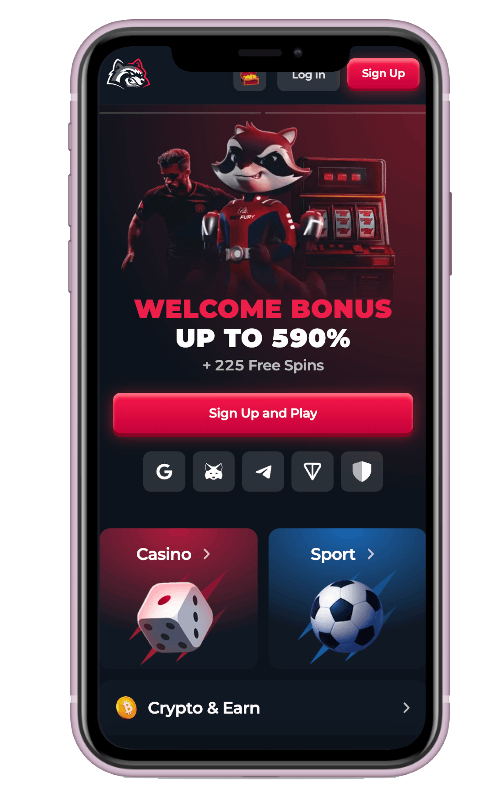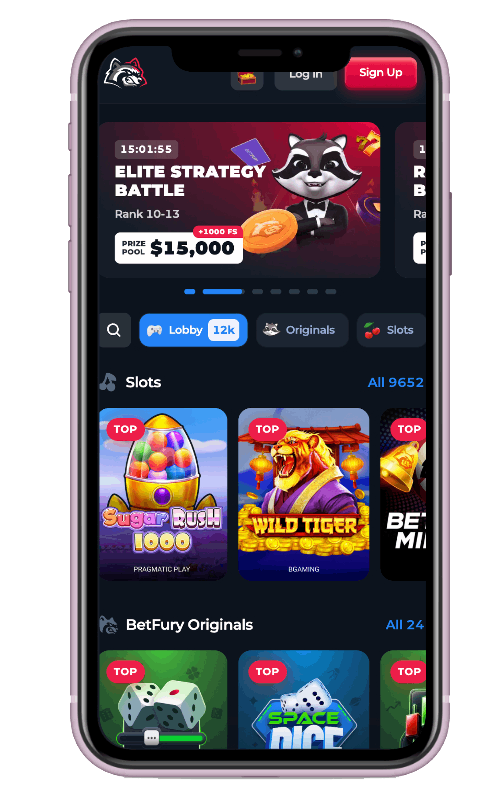











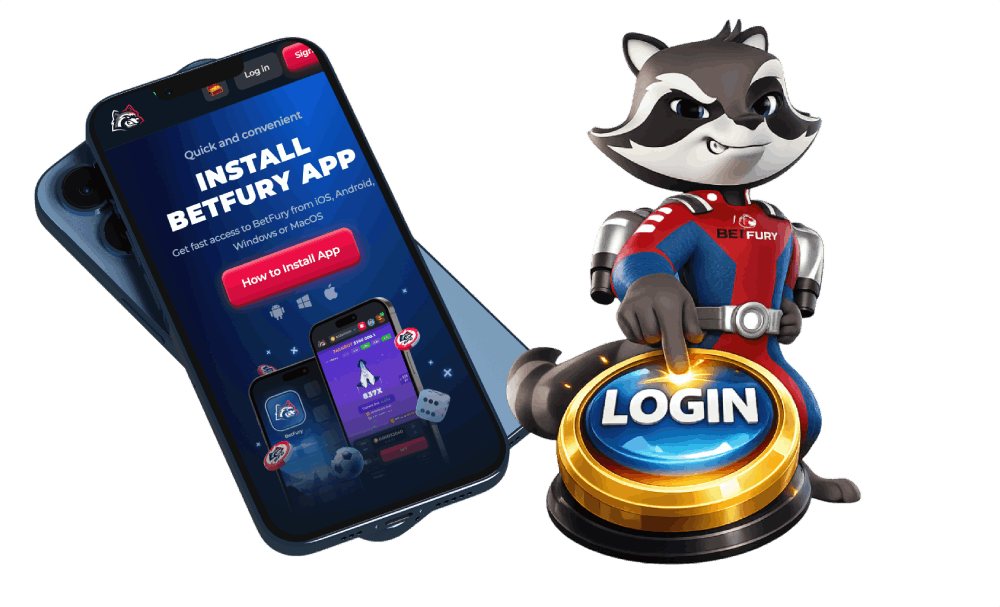
BetFury App Download for Android, iOS, Windows & macOS


The BetFury App gives Canadian users a faster way to open BetFury on a phone, tablet, Windows PC, or Mac. The installation method is not identical on every device. Android users may be offered a native APK file as well as a browser-installed version, while iPhone, iPad, Windows, and macOS users install BetFury through Google Chrome or Safari. The installed browser version is commonly known as a progressive web app, or PWA: it opens from its own icon but continues to load the current platform from the official website.
This guide is devoted exclusively to the BetFury app download and installation process. It explains which versions are available, how the Android APK differs from a browser-installed app, how to install BetFury on each supported operating system, what to do if the install option is missing, how existing account access works, and how to remove or update the app safely. The exact button names can change with browser and operating-system updates, and availability may vary by device, account, and location.
What Is the BetFury App?
BetFury does not use one universal installation file for Android, iOS, Windows, and macOS. The official installation page detects the selected platform and presents the compatible method. In the current Android and iOS installation panel, Android users can see a native Download App (.apk) option when it is available. The same panel provides browser instructions for iPhone and iPad. The Windows and macOS panel explains how to install the web app from Chrome or add it to the Dock from Safari on a compatible Mac.
After installation, the icon opens the same BetFury account environment used on the website. It does not create a separate balance or a second profile. Users sign in with their existing credentials and can access the platform sections supported on their device. According to the official BetFury installation page, the main purposes of the app are faster loading, one-click access, and web push notifications where the browser, operating system, and user permissions support them.
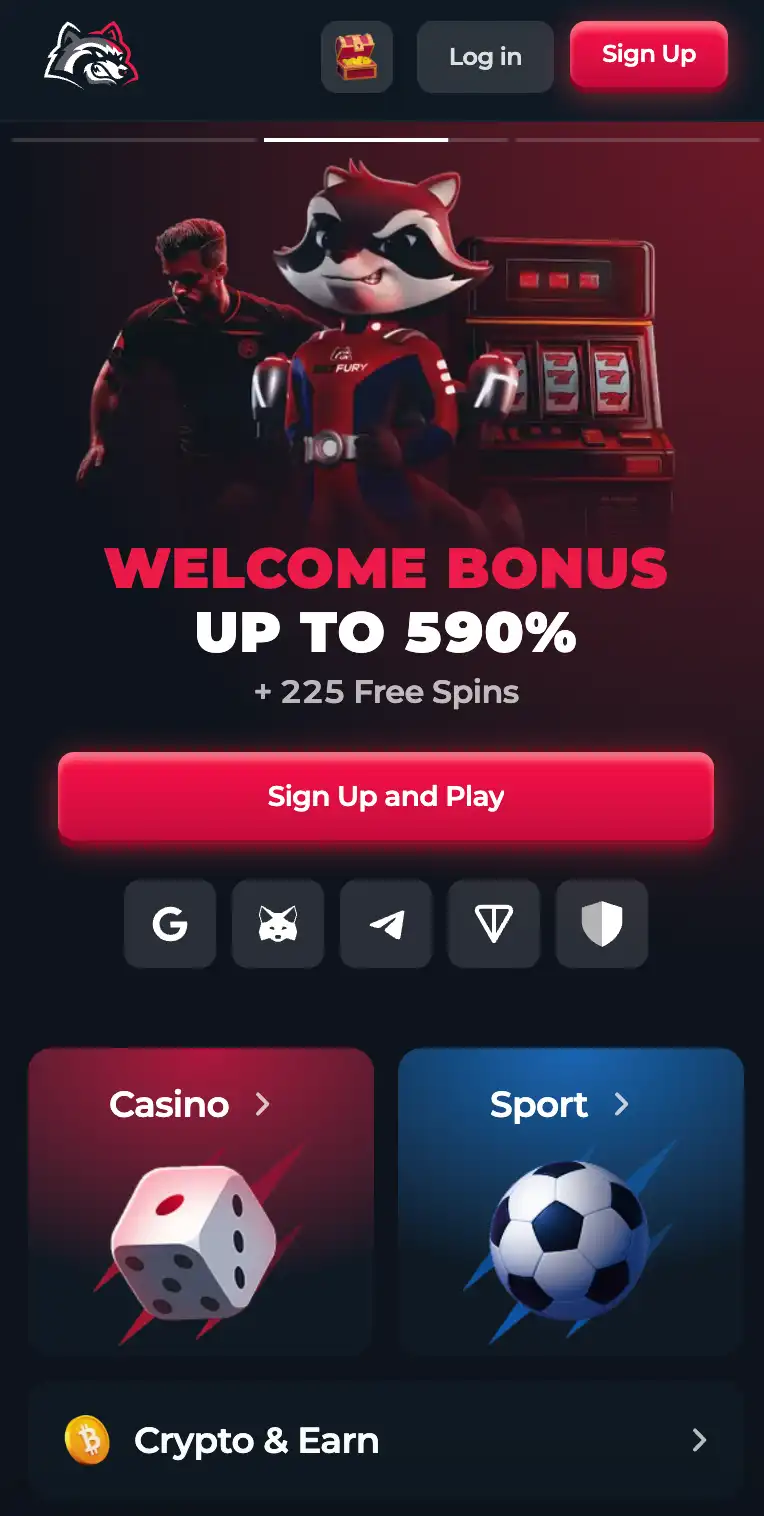
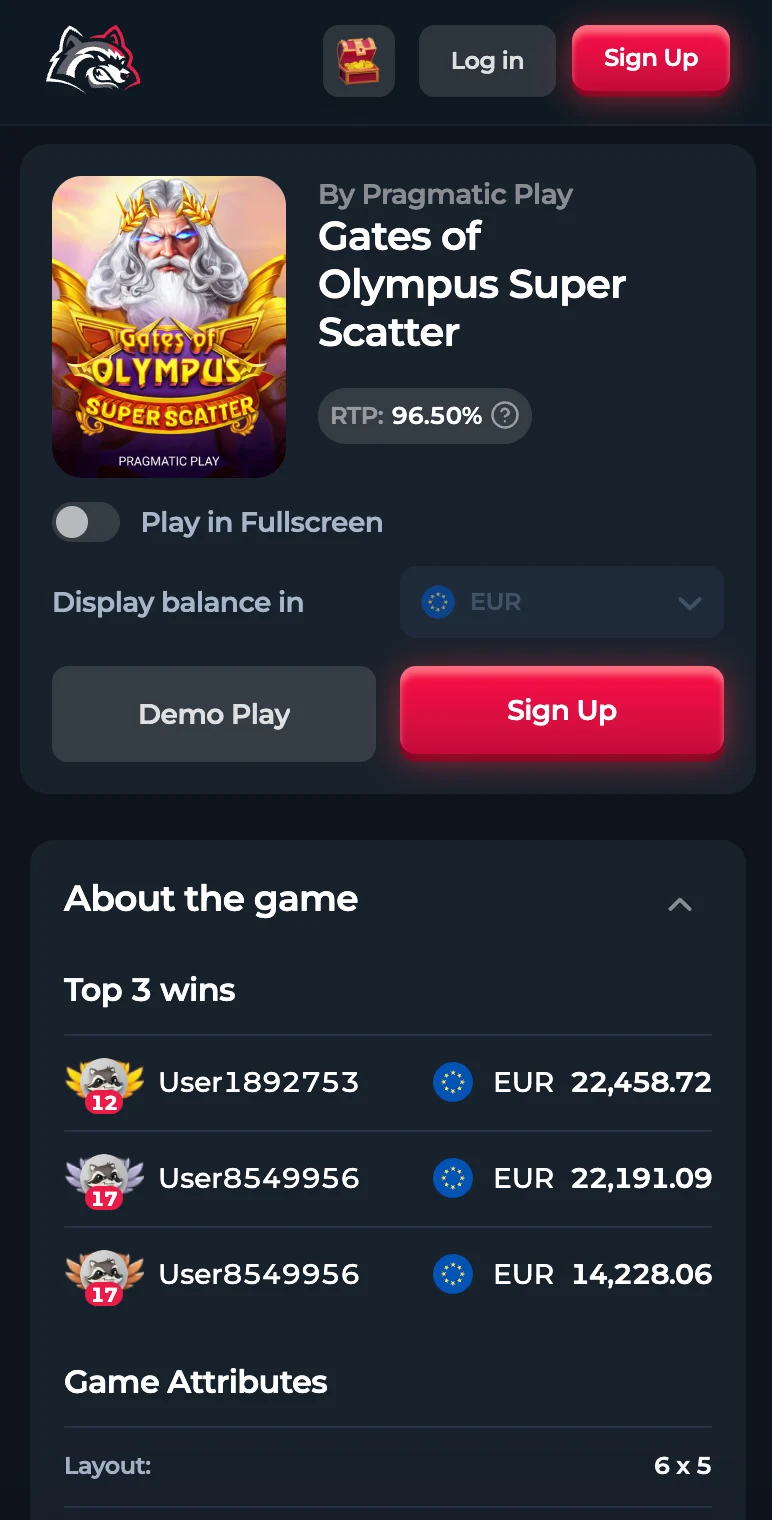
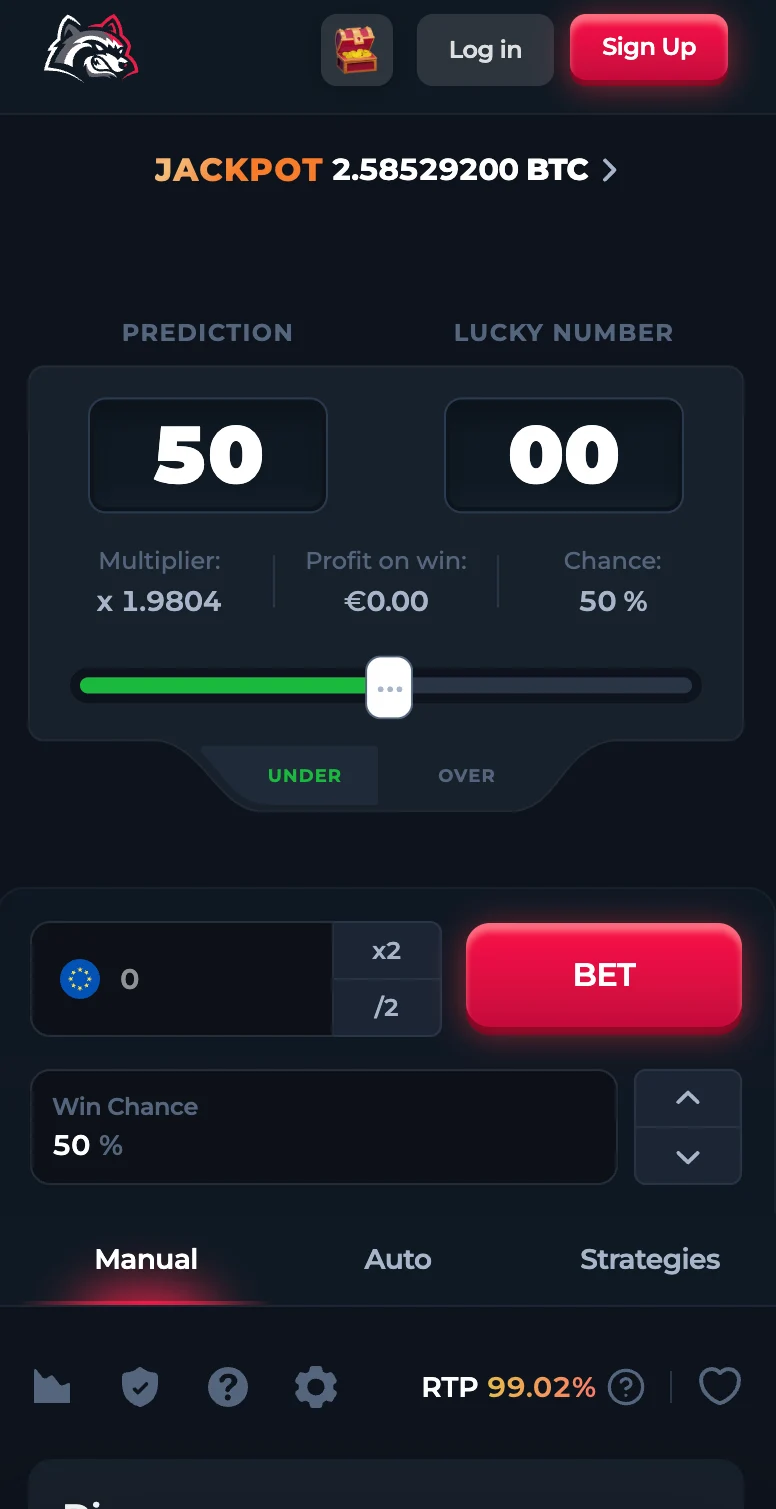


The available installation formats can be summarized as follows:
- Android: a native APK may be available from the official installer; Chrome can also offer Install App or Add to Home Screen.
- iPhone and iPad: BetFury is added to the Home Screen through Safari or Chrome as a browser-installed web app.
- Windows: Chrome installs BetFury as a desktop web app through the Install icon in the address bar.
- macOS: Chrome provides an Install option, while compatible Safari versions provide Share and Add to Dock.
- Regular mobile website: users who do not want to install anything can continue opening BetFury in a normal browser tab.
Where to Download the Official BetFury App
Start on the device where the app will be used and open the official BetFury installation page. Check the address bar before downloading a file or entering account details. The domain should be the official BetFury domain, not an APK catalogue, an imitation casino site, a shortened link, or a download mirror.
- Open the official installation page on the Android phone, iPhone, iPad, Windows computer, or Mac that will run the app.
- Select How to Install App to open the installation instructions.
- Choose Android / iOS for a phone or tablet, or Windows / macOS for a desktop or laptop.
- Follow only the method displayed for the current device. Android may show a Download App (.apk) button; Apple and desktop devices show browser-based instructions.
- When installation is complete, open the new BetFury icon and use the same account credentials as on the website.
Do not search for an unofficial “BetFury APK” on third-party download sites. A copied package can be outdated, modified, or designed to collect passwords and wallet information. The live official installer should always be treated as the final source for the current file, supported browser, and device-specific steps.
How to Download and Install the BetFury APK on Android
Android has two possible installation routes. The first is a native APK offered through the official BetFury modal. The second is a browser-installed web app created through Chrome. Use the option that appears on the device. If both are available, the APK installs an Android application package, while the Chrome method creates an app-style shortcut connected to the website.
Native Android APK installation:
- Open the official BetFury install page in Google Chrome and select the Android / iOS tab.
- Find the Android section marked Native App and confirm that the blue button says Download App (.apk).
- Tap the button. Chrome may warn that Android packages downloaded outside an app store require explicit confirmation. Continue only after confirming that the download came directly from the official BetFury page.
- Open the completed download from Chrome’s notification or from the device’s Files or Downloads folder.
- If Android blocks the package, follow the settings prompt for Chrome or the file manager and temporarily enable Allow from this source. Modern Android versions manage this permission separately for each source.
- Return to the installer, review the Android confirmation, and tap Install.
- When installation finishes, tap Open or find the BetFury icon in the app list.
- For better security, return to the Install unknown apps setting and disable the temporary permission for Chrome or the file manager.
Do not disable Play Protect or device security globally just to complete the installation. If Android refuses the package, delete any incomplete copy, verify the source, make sure the device has sufficient storage, restart the download from the official page, and try again. A managed work phone may block APK installation through company policy; in that case, use the Chrome web-app method instead of trying to bypass the restriction.
Android installation through Chrome:
- Open BetFury in a current version of Google Chrome.
- Tap Chrome’s More menu, normally shown as three dots.
- Select Install App or Add to Home Screen. The wording depends on the Android and Chrome version.
- Review the displayed name and icon, then confirm Install or Add.
- Return to the Home Screen and open the new BetFury icon.
The Chrome method does not require opening an APK or enabling installation from an external source. It is the simplest alternative when the direct APK is not offered, is restricted by device policy, or is not preferred by the user.
How to Install BetFury on iPhone or iPad
On iOS and iPadOS, BetFury is installed from the browser as a Home Screen web app. An Android APK cannot run on an Apple device, and users should not download an unofficial IPA file or rely on an unrelated App Store listing. Safari provides the standard Apple method, while the official BetFury page also documents installation through Chrome.
Installation with Safari:
- Open Safari on the iPhone or iPad and visit the official BetFury installation page.
- Tap the Share icon, normally shown as a square with an upward arrow in the Safari toolbar.
- Scroll through the share sheet and select Add to Home Screen.
- If the action is not visible, choose Edit Actions and add the Home Screen option to the available list.
- Review the app name and website address. Do not continue if the address does not use the official BetFury domain.
- Tap Add. iOS places the BetFury icon on the Home Screen, where it can be moved like any other icon.
Installation with Chrome on iOS:
- Open the official BetFury installation page in Chrome and select the Android / iOS instructions.
- Use the Install control shown by Chrome or open the browser’s share or menu control.
- Select Add to Home Screen, review the name, and confirm.
- Open the new BetFury icon from the Home Screen.
Browser and iOS updates can move the Share or Install control. If the icon shown in the BetFury instructions is not present, open the full browser menu and look specifically for Add to Home Screen. It can also help to open the page in a normal tab instead of Private Browsing or an embedded browser inside a social or messaging app.
How to Install the BetFury App on Windows
The Windows version is installed by Google Chrome as a desktop web app. It is not a traditional executable downloaded from a software catalogue. The installed version gets its own window and launcher entry while continuing to use the official BetFury web service.
- Open the official BetFury website in Google Chrome on the Windows computer.
- Wait for the page to finish loading and look at the right side of the address bar for the Install icon. Depending on the Chrome version, it may resemble a screen or a download arrow.
- Click the icon and review the Chrome confirmation window.
- Select Install. Chrome opens BetFury in a dedicated app-style window and adds it to the Windows app list.
- If desired, use the standard Windows shortcut controls to pin it to the Start menu or taskbar.
If the Install icon is missing, open Chrome’s main menu and look for Install App or a similar option. Reload the page, update Chrome, and confirm that the site is open in a full Chrome tab rather than an embedded browser.
How to Install the BetFury App on macOS
Mac users can install BetFury through either Chrome or a compatible version of Safari. Both routes create a desktop web app rather than a traditional DMG package.
Installation with Google Chrome:
- Open BetFury in Chrome and wait for the official page to load completely.
- Click the Install icon on the right edge of the address bar.
- Confirm the installation in Chrome.
- Open the installed app from its launcher entry and, if desired, keep it in the Dock.
Installation with Safari:
- Open the official BetFury page in Safari on a macOS version that supports web apps.
- Click the Share icon on the right side of the Safari toolbar.
- Select Add to Dock.
- Review the name and URL, confirm the action, and open the app from the Dock or Launchpad.
If Safari does not show Add to Dock, the installed Safari or macOS version may not support the feature. Update the system if appropriate or use Chrome’s Install option as the alternative.
Installing the App After Registration with a Crypto Wallet
BetFury’s official instructions include an additional step for accounts originally created through a connected crypto wallet. Open the account settings, add an email address, and create a password. Then sign out and log back in with that email and password before starting the app installation. This gives the installed version a conventional login method instead of relying only on the original wallet connection.
- Sign in to the existing BetFury account through the connected wallet.
- Open the profile or account settings and add an email address you control.
- Create a unique password that is not reused on another website.
- Complete any email confirmation requested by the platform.
- Log out, sign in again using the new email and password, and return to the app installer.
Do not create a second account to solve an app login problem. Duplicate accounts can conflict with platform rules. If the existing account cannot be accessed, contact official support and provide only the information requested through a verified support channel.
What Is Available in the BetFury App?
The installed experience is an entry point to the wider BetFury platform, not a separate demo. The official BetFury documentation describes a crypto-focused ecosystem that includes original games, slots, jackpots, multichain support, bonus features, free-to-play activities, a rank and VIP system, sports betting, and customer support. The exact catalogue and account features can change by location, device, account status, and current platform rules.
On a compatible device, users can sign in to the same profile, open supported casino and sports sections, review available promotions, manage relevant account settings, and access balance or transaction areas. A mobile screen may arrange navigation differently from the desktop website, and individual games can have their own orientation, browser, or performance requirements.
Account balances and profile data belong to the online account rather than to the local icon. Installing BetFury on another device does not create a second balance. Likewise, removing the app does not erase the online account, transaction history, or data held by the platform.
APK, Browser-Installed App, and Mobile Website
The Android APK is a package installed by Android. It may require temporary permission to install from the browser or file manager that downloaded it. Users should choose this option only when the package is offered on the official BetFury installation page.
The browser-installed app is created through Chrome or Safari using Install App, Add to Home Screen, or Add to Dock. It receives current content from the web service and usually does not require a separate manual update file. This is the standard method for iPhone, iPad, Windows, and macOS, and it can also be used on Android.
The mobile website requires no installation. It is suitable for occasional access, a shared device, or users who do not want another app icon. The main difference is convenience: the installed version launches from the Home Screen, Start menu, app list, or Dock, while the website opens in a regular browser tab.
Permissions, Notifications, Updates, and Removal
A browser-installed app uses permissions managed by Chrome, Safari, and the operating system. Grant a permission only when its purpose is clear. Web push notifications are optional; declining them should not prevent normal browser access. On a shared device, notifications can reveal account or promotional information to other people, so they should remain disabled unless the user controls the device.
Browser-installed versions normally load current content from the website, so they generally do not need a separately downloaded update package. Native Android APK users should follow only an update prompt displayed through the official app or the current official installation page. Never install an “update” received through an unsolicited email, direct message, advertisement, or unknown download link.
To remove BetFury on Android or iOS, use the operating system’s normal uninstall or remove action from the icon. On Windows, remove the installed web app through Chrome’s app controls or Windows Settings. On macOS, use the browser’s installed-app controls or the normal Applications management method. Uninstalling the app or deleting the shortcut does not automatically close the BetFury account.
BetFury App Troubleshooting
The Install icon does not appear in Chrome. Reload the official page, wait for it to finish loading, and check Chrome’s main menu for Install App or Add to Home Screen. Make sure the page is open in Chrome itself rather than inside another app. Updating Chrome or reopening the URL in a normal tab can restore the installation option.
Safari does not show Add to Home Screen. Open the Share menu and scroll through all actions. On iPhone or iPad, use Edit Actions if the option is hidden. Confirm that the page is open in Safari rather than an in-app browser.
Safari on Mac does not show Add to Dock. The feature requires a compatible Safari and macOS version. If a system update is not available or not appropriate, use Chrome’s Install option.
The Android APK downloaded but will not open. Open the file from Downloads, confirm that it came from the official domain, and grant temporary Allow from this source permission only to the browser or file manager used for the download. A work-managed device may block APK packages through policy.
Android reports that the app is not installed. Delete incomplete or duplicate downloads, confirm that there is enough free storage, restart the device, and download a fresh package from the official page. An older incompatible copy can cause a conflict. Do not use a third-party installer to bypass Android security checks.
The icon opens a normal browser tab. The launch mode depends on the browser, operating system, and the way the shortcut was created. Remove the basic shortcut and repeat the process using Install App rather than Add Bookmark when the browser offers both choices.
The app shows an old page or does not load. Check the internet connection, close and reopen the app, and test the official website in the underlying browser. If the website works but the installed shortcut does not, remove the web app and install it again.
Login works in the browser but not in the app. Confirm that both use the same official domain and the same login method. Wallet-registered users should add an email and password, sign out, and log back in with those credentials before reinstalling.
How to Install the BetFury App Safely
- Begin at the official BetFury install page, not a third-party APK catalogue or download mirror.
- Check the full domain before entering a password, connecting a wallet, or downloading a package.
- Never share a password, wallet seed phrase, private key, recovery phrase, or one-time verification code with an installer or support message.
- Keep Android, iOS, Windows, macOS, Chrome, and Safari updated to a currently supported version.
- Use a unique password and enable any account security controls currently offered by the platform.
- Do not use false location details or tools intended to bypass regional restrictions, because this can create verification or withdrawal problems.
- On a shared device, prefer the browser, do not save credentials, disable notifications, and sign out after use.
- Before any crypto transfer, verify the selected asset, blockchain network, wallet address, amount, and any current platform limits.
Using the BetFury App in Canada
Canadian visitors should confirm that they meet the legal age requirement and that online gambling is permitted where they are physically located. Availability on a device does not by itself establish legal eligibility. The official BetFury site states that users must be over 18 and are responsible for complying with local iGaming laws; provincial requirements or operator restrictions may be stricter.
Installing an app makes access quicker, so responsible-use boundaries are important. Set a spending budget and session limit before opening the app, keep gambling funds separate from essential expenses, disable promotional notifications if they encourage impulsive play, and never treat gambling or cryptocurrency price movements as guaranteed income. If gambling stops feeling controlled, close the app and use the responsible gambling services available in the relevant province.
Official BetFury App Information
This guide was prepared using the current BetFury App installation page and the official BetFury product documentation. Installation labels, supported methods, and feature availability can change, so users should always follow the live instructions displayed by the official installer on their own device.